
Protecting Your Music
Protecting Your Music
The Organist’s Guide to Intellectual Property in WatsonMIDI™
Capture the Music. Share the Ministry – on your terms.
✓ Your Work Stays Yours
Every recording you make lives on your device, carries your name, and is shared only when you choose – protected by AES-256 encryption and a license that you control.
When you sit down at the console and record a hymn in WatsonMIDI, you are creating something far more valuable than a file. Your timing, your phrasing, your registration choices, the way you shape a crescendo – these reflect years of training and your own musical voice. That performance is your intellectual property, just like a published arrangement or a studio recording, and it deserves the same care when you share it.
This guide walks through exactly how WatsonMIDI protects your work, what each protection option means, and how to share recordings with a church or client step by step – with pictures of every screen along the way.
What Your Recordings Actually Contain
| Element | What’s Captured | Why It’s Valuable |
|---|---|---|
| Performance interpretation | Timing, dynamics, phrasing | Your unique musical voice |
| Registration choices | Stop combinations, swell positions | Years of experience with the instrument |
| Expression data | Crescendo pedal movements, dynamics | Emotional depth of the performance |
| Tempo variations | Rubato, ritardando, accelerando | Artistic decision-making |
| Arrangement decisions | Chord voicing, pedal choices | Creative interpretation |
Three Layers of Protection
1. Local storage by default
Your recordings live on your device and nowhere else. Nothing is uploaded to a cloud server, and no one can access your library unless you choose to share it.
2. The WatsonMIDI format
Recordings are saved in WatsonMIDI’s own format, which embeds your name, creation date, and recording details – and can only be opened by the WatsonMIDI app. It is not directly editable by other software the way a standard .mid file is.
3. Protected sharing with a license
When it’s time to hand recordings to a church or client, WatsonMIDI encrypts them with AES-256 encryption and attaches a license that you choose – how many times they can be played, or until what date. The license is enforced on the recipient’s device automatically, and protected recordings cannot be exported, backed up off the device, or re-shared – they stay with their license, period. Protected sharing is included in the Symphony and Maestro tiers.
The Four License Types
Every protected share carries one of four licenses. Pick the one that matches your relationship with the recipient – you can always send a new file later with different terms.
Play Once
The recipient can play each recording one time; it’s removed after playback.
Best for auditions, one-time events, and previews.
Limited Plays
The recipient can play each recording a set number of times – 3, 5, 7, 10, or 20.
Best for short-term coverage and trial arrangements.
Time-LimitedNEW
The recipient can play until a date you choose, with 3-month, 6-month, and 1-year presets. After the date passes, the recordings become unplayable. Renew anytime by sending a fresh share – the new date replaces the old one on import.
Best for vacation coverage, annual licensing, and paid arrangements.
Keep Forever
The recipient keeps the recordings permanently.
Best for gifts, transfers of ownership, and trusted long-term relationships.
Licenses are enforced locally on the recipient’s device – no internet connection or account is required for the protection to work.
What the recipient needs: the Audition tier or higher receives Play Once, Limited Plays, and Time-Limited shares. Keep Forever shares import on any tier. Time-Limited shares also require the recipient to be on the current version of WatsonMIDI – older versions will show an import error, so ask the church to update before you send.
Step by Step: Sharing a Protected Service
The example below shares an entire service (a playlist of seven recordings) as a single protected file. You can share individual recordings from the Library the same way – the protection screens are identical.
Select the service and tap Share
Open the Services tab and tap the service you want to send. Its recordings appear on the right, in order. Tap the Share button next to Use Service.
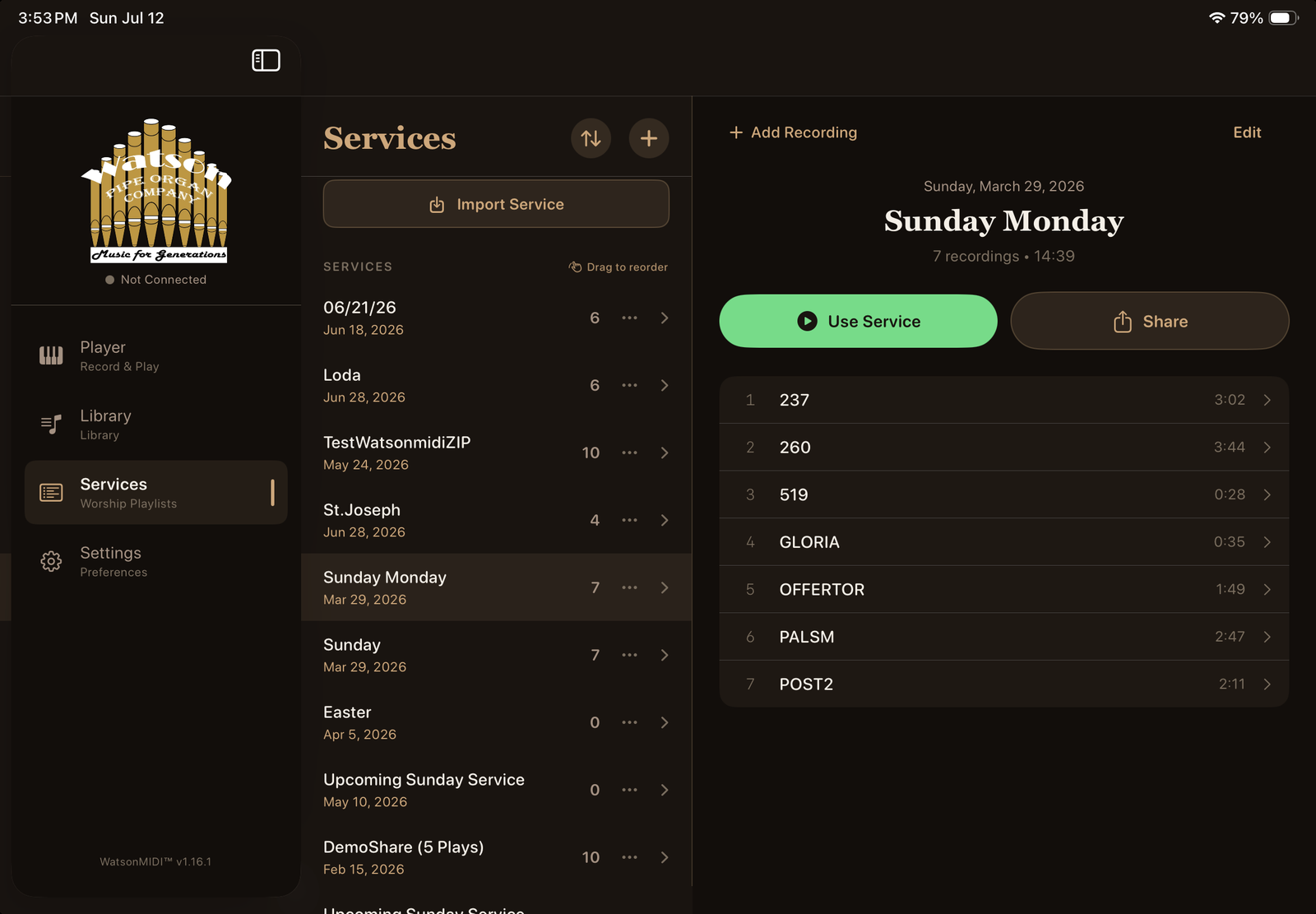
The Services tab with a service selected. The Share button sits beside Use Service.
Protect Your Work: add your name
The Share Options screen opens with the AES-256 Encrypted badge at the top. Under Creator Attribution, enter your name as you want it shown to the recipient – every recording in the share will carry it. The panel below confirms which service and how many recordings you’re sending.
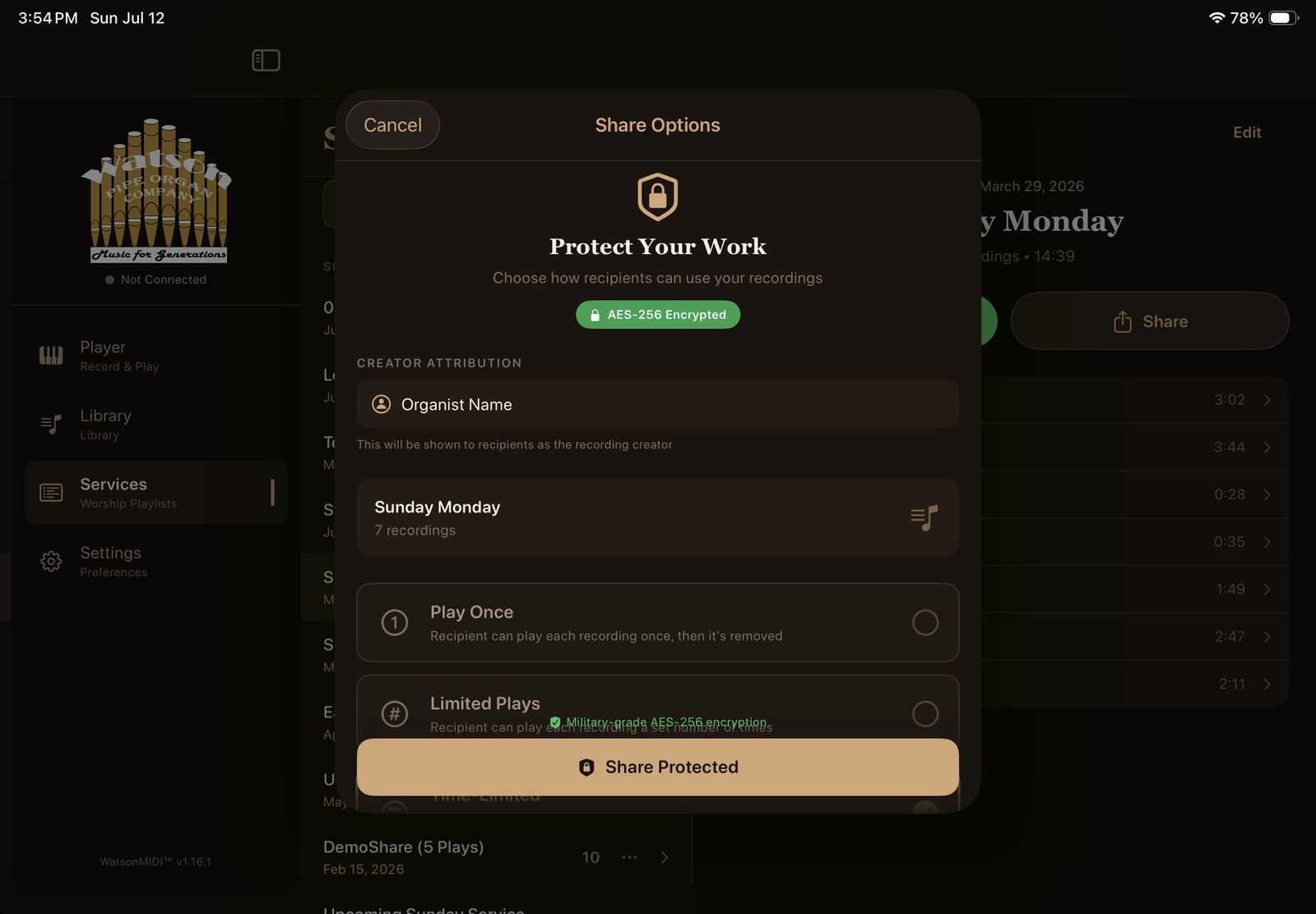
Protect Your Work: creator attribution and the encrypted-share badge.
Choose the license
Scroll to the license options and pick one: Play Once, Limited Plays, Time-Limited, or Keep Forever. In this example, Time-Limited is selected with the 1 Year preset – the “Plays until” date fills in automatically, and you can adjust it. As you change the date, WatsonMIDI shows the duration in plain words – “That’s about 2 weeks from today” – so you always know exactly how long you’re granting, even if the year on the date wheel isn’t what you expected. When you’re satisfied, tap Share Protected.
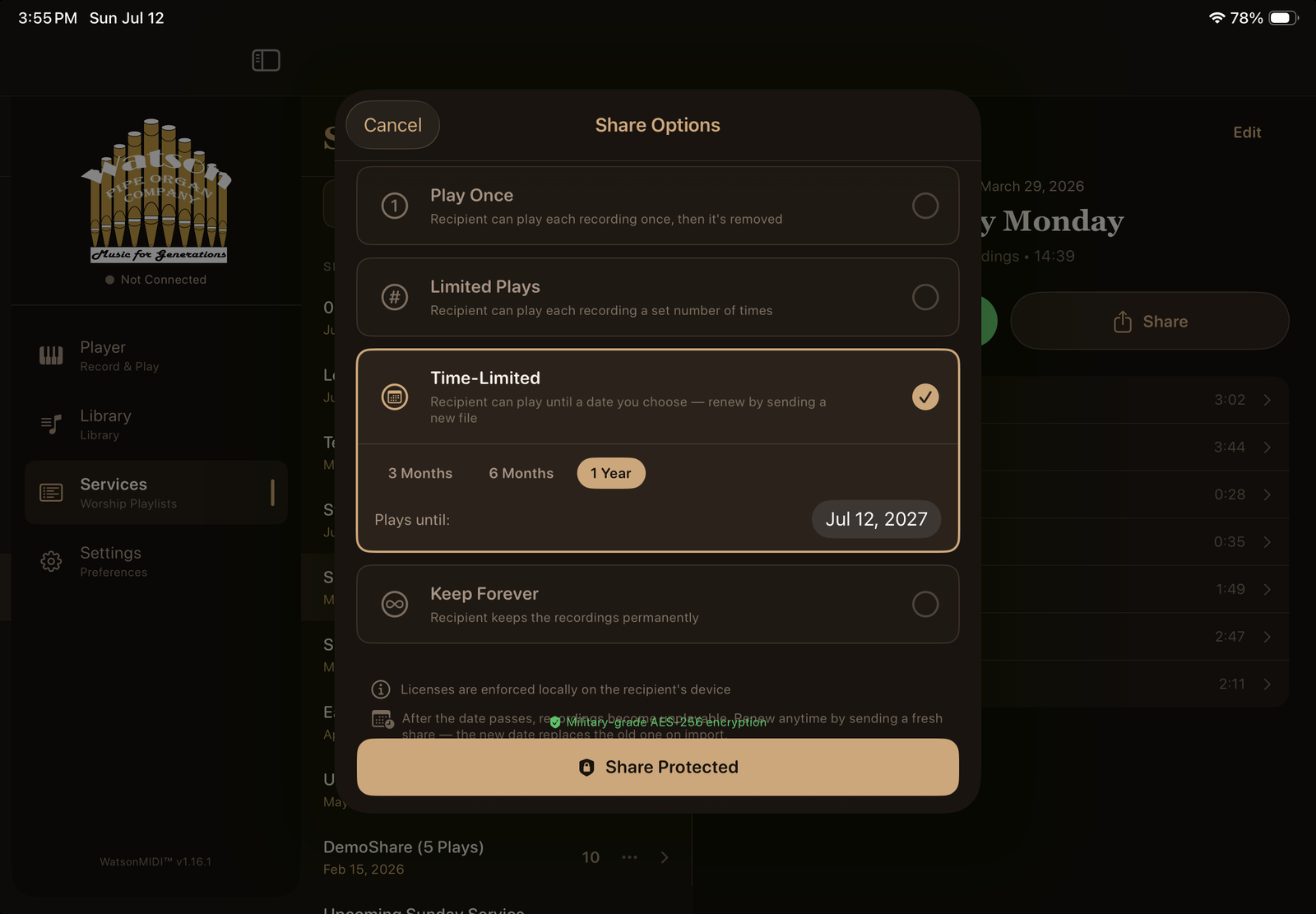
License selection: Time-Limited with 3-month, 6-month, and 1-year presets.
WatsonMIDI encrypts the share
The app packages and encrypts everything in the service – MIDI data, registrations, and any audio room recordings – showing its progress as it works. Larger services with audio take a little longer.
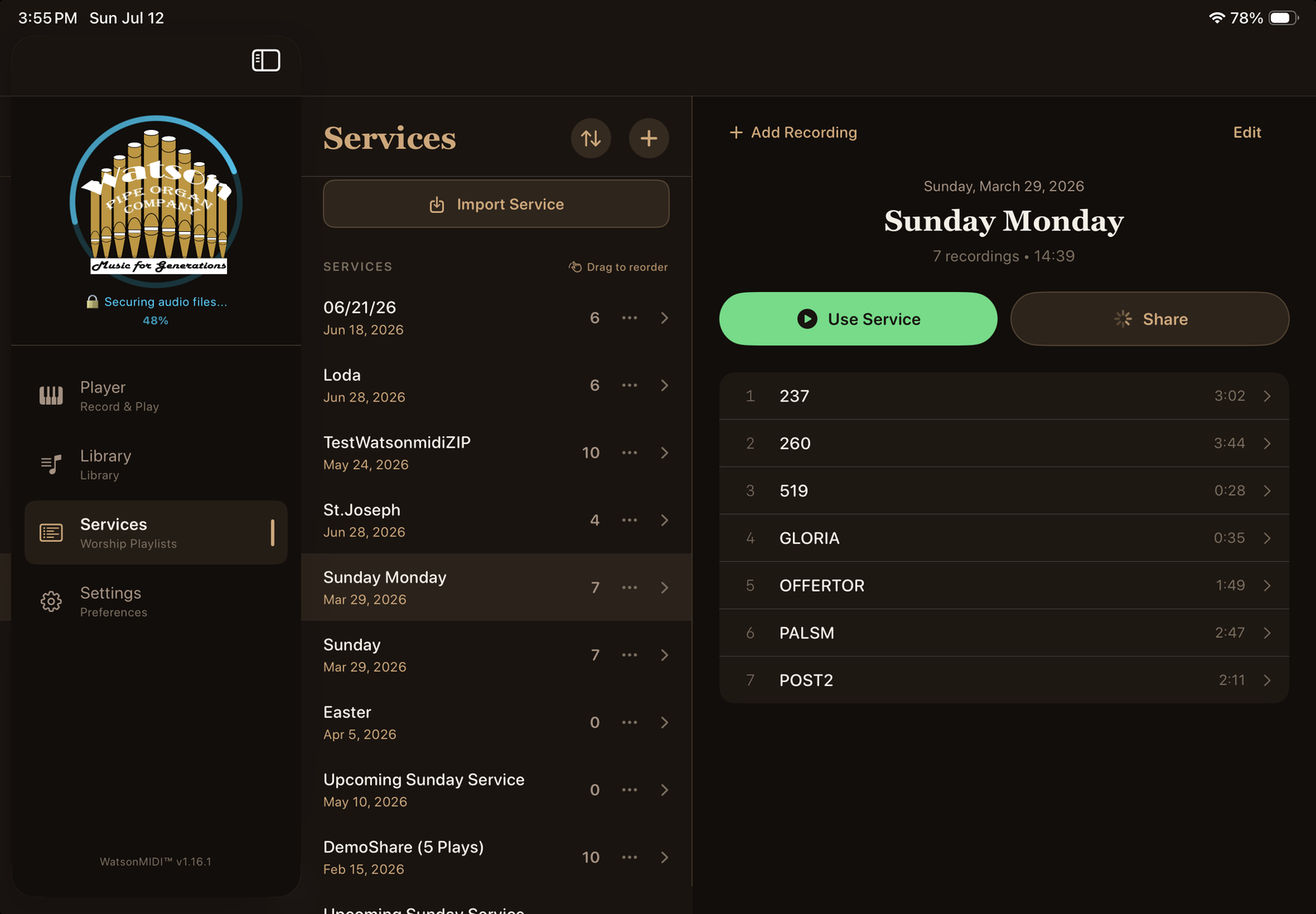
Encryption in progress: “Securing audio files…” with a percentage indicator.
Send the protected file
A single .watsonmidi file is produced – the whole service, recordings and license together. Send it by AirDrop, Messages, or Mail, or save it to Files. The recipient taps the file, chooses Open in WatsonMIDI, and the service imports with your name and license attached. After the share sheet closes, WatsonMIDI confirms exactly what you granted in plain language – “Protected until July 26, 2027” – so you can catch any mistake while there’s still time to send a corrected file.
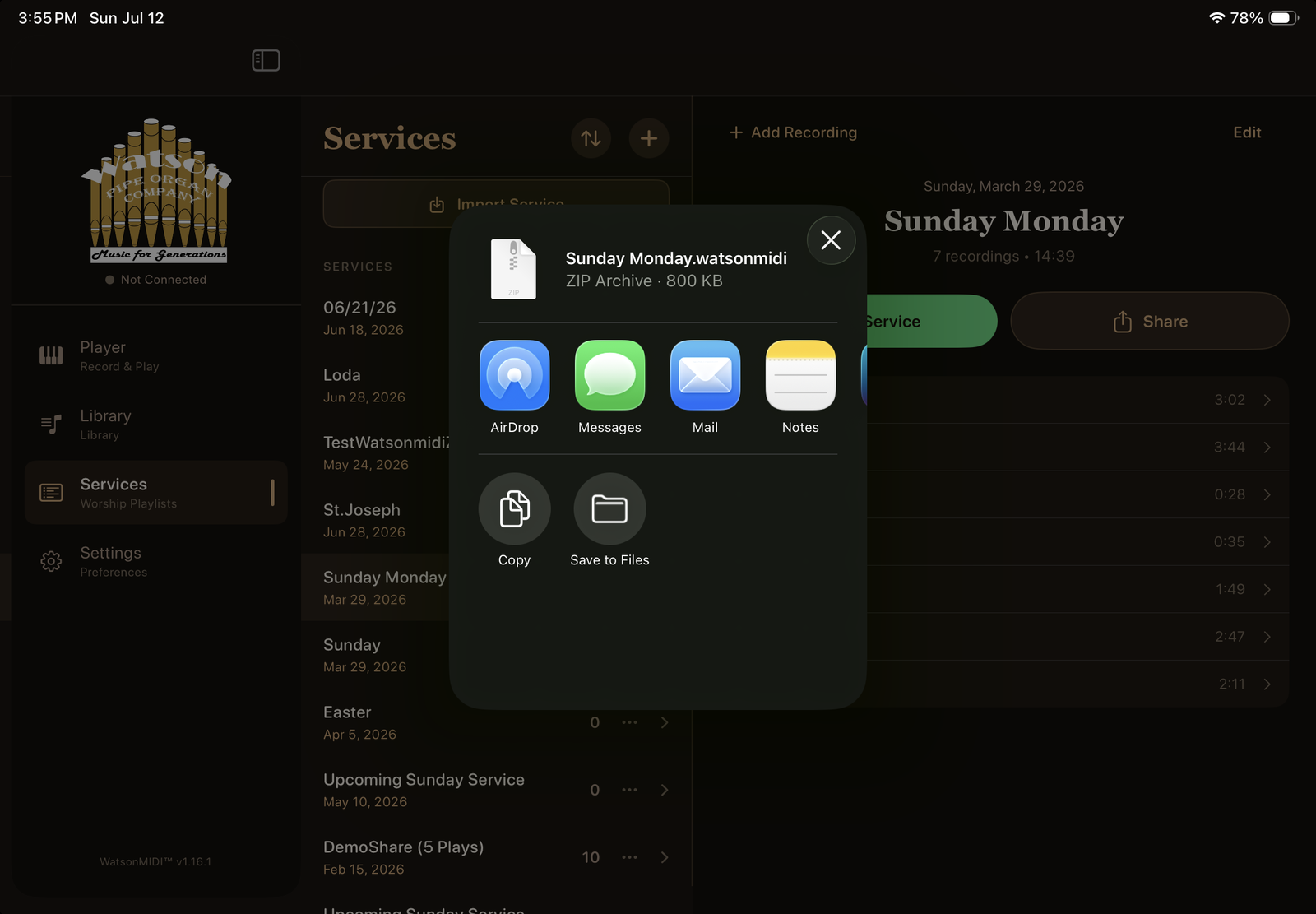
The finished protected file, ready to send by AirDrop, Messages, Mail, or Files.
What the Recipient Sees
The church or client needs an iPad or iPhone with WatsonMIDI (Audition tier or higher for protected shares) and a MIDI connection to their instrument. After importing, the shared service appears in their Services list with the license terms visible: play-limited recordings show their remaining plays, and time-limited recordings show their expiration date right on the transport – “Until 10/31/26” – wherever the recording appears.
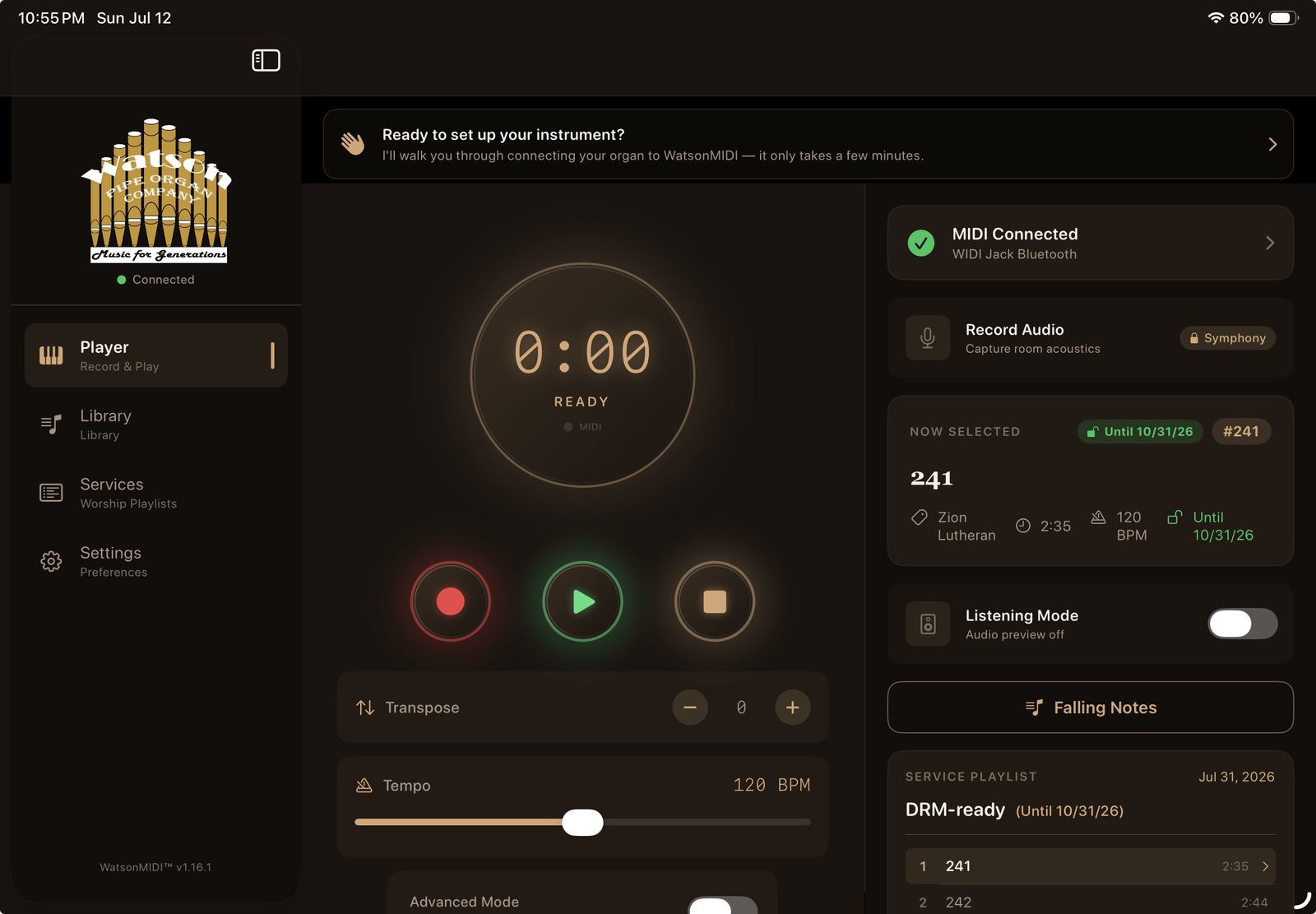
The recipient’s Player screen: a time-limited recording shows its expiration date, not a mystery.
The recordings behave like part of their own library: the church can build its own service playlists from your recordings, reorder them, and mix them with their own – the license travels with each recording wherever it goes. Playback is one tap, and the organ performs exactly what you recorded. One thoughtful detail: plays are only consumed when the iPad is actually connected to the instrument. A volunteer can rehearse the flow of a service, or preview a recording through the iPad speaker, without spending the plays you granted – what’s licensed is the organ performance itself.
When a license runs out – the plays are used up or the date passes – the recording locks. It shows “0 plays left” or “Expired,” refuses to start, and if it comes up mid-service, playback simply skips to the next piece. There’s no confrontation and nothing for anyone to manage: the license does its job quietly. To extend the arrangement, send a fresh share – the new terms replace the old ones on import, and remaining plays top up without creating duplicates.
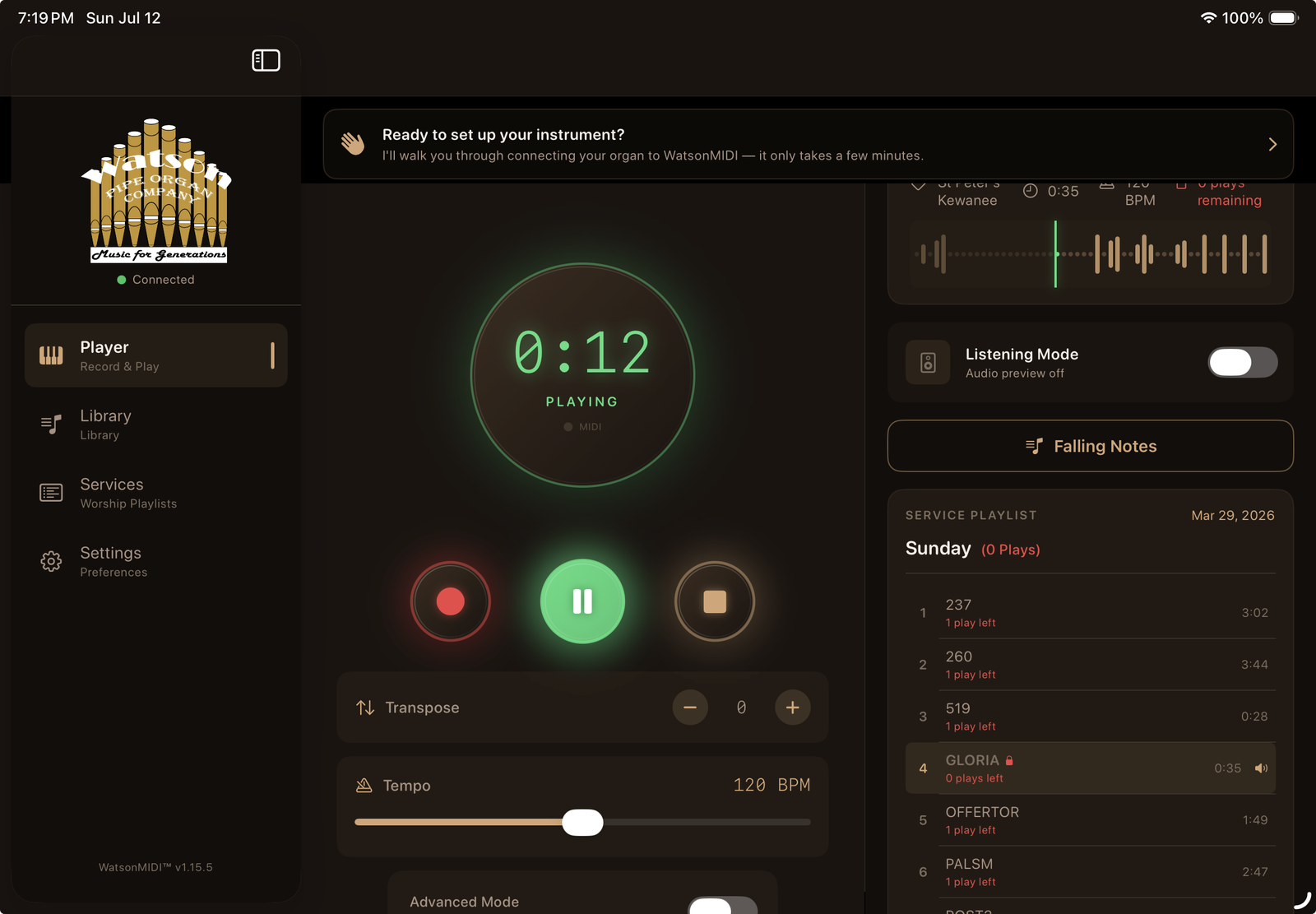
A recording with no plays remaining: locked, clearly labeled, and skipped automatically during a service.
Protection That Holds – What Recipients Cannot Do
This is the part that makes the license real. A protected recording on a church’s iPad is theirs to play, on your terms – and nothing else. WatsonMIDI enforces this at every door:
It cannot be re-shared
If anyone selects your licensed recordings and taps Share, WatsonMIDI refuses – by name: “licensed from Margaret Olson … protected and cannot be exported or re-shared, to preserve the creator’s intellectual property rights.” Your attribution follows the recording and speaks for you when you’re not in the room.
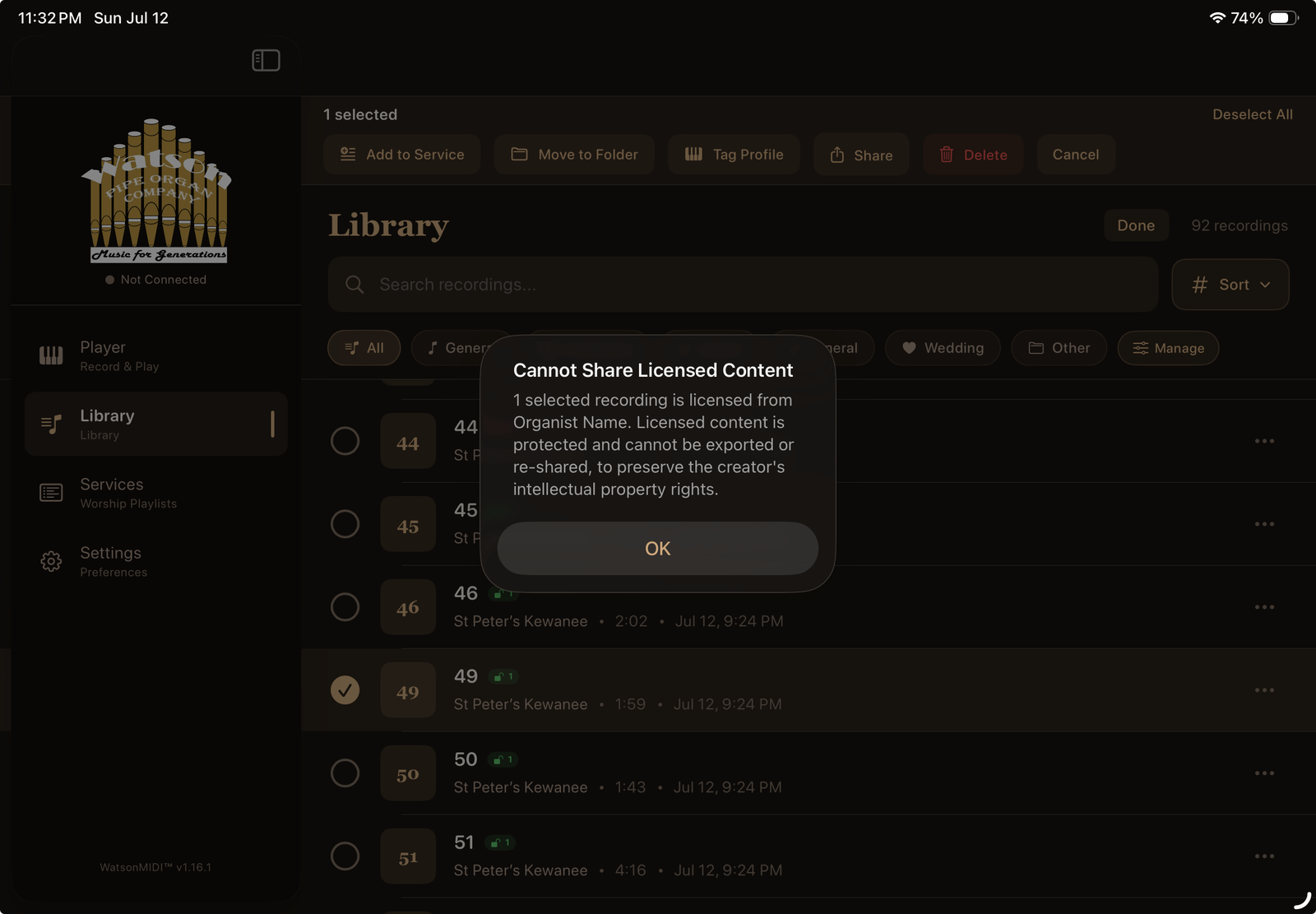
A recipient attempting to re-share licensed content sees this – with the creator’s name.
It cannot be exported as a MIDI file
Licensed recordings don’t appear in any export list, and every export path in the app refuses them at the source. There is no sequence of taps that turns your protected performance into an unprotected .mid file.
It cannot leave in a backup
When the church backs up their library, licensed recordings are excluded automatically – with a clear note explaining why. Protected content stays with its license on the device it was granted to.
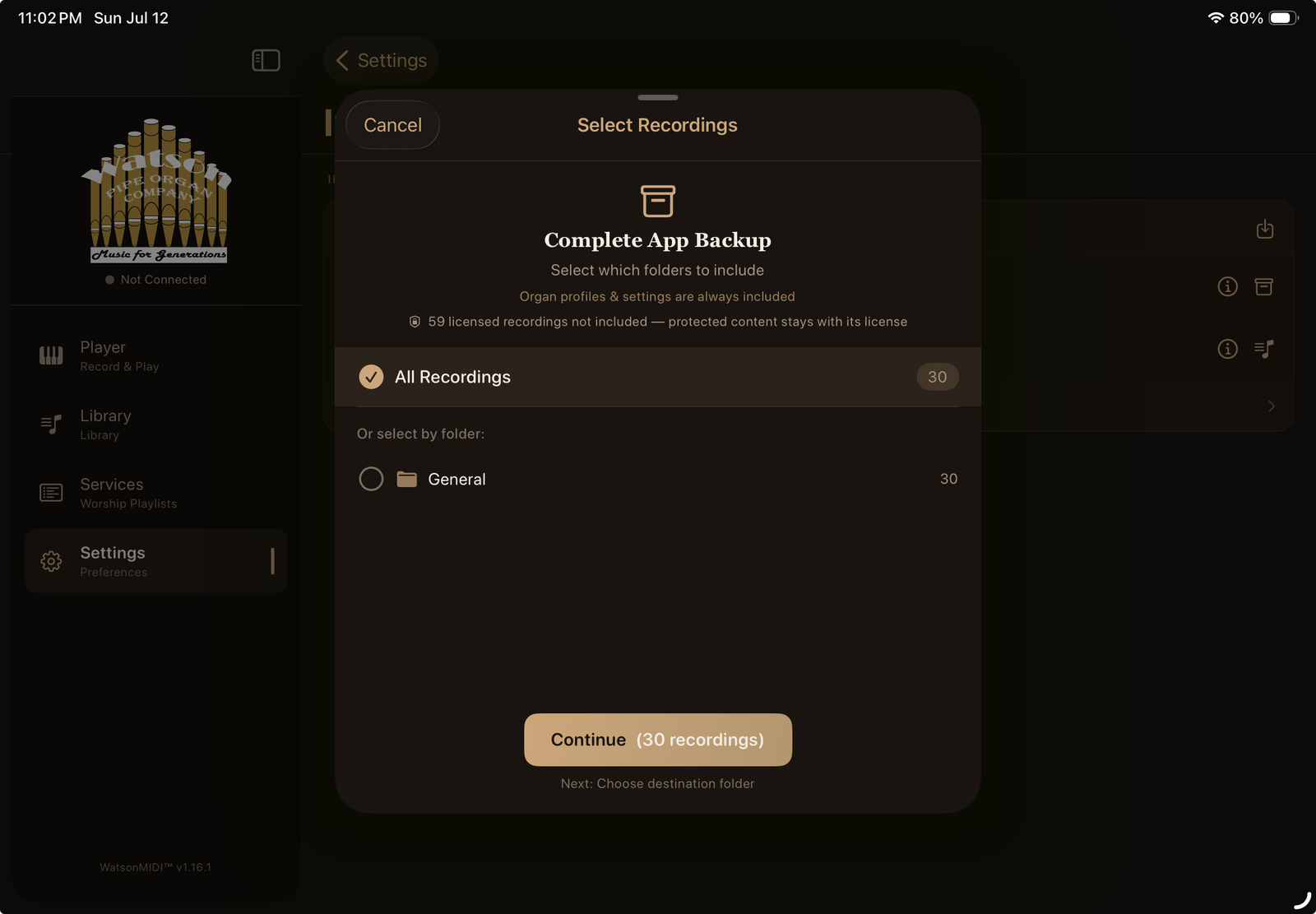
The church’s backup screen: their own recordings back up normally; yours stay put.
And everything is visible
The recipient’s Settings include a Licensed Content page listing every protected recording, who it’s from, and what remains – active and expired counts at a glance. Honest accounting, both directions.
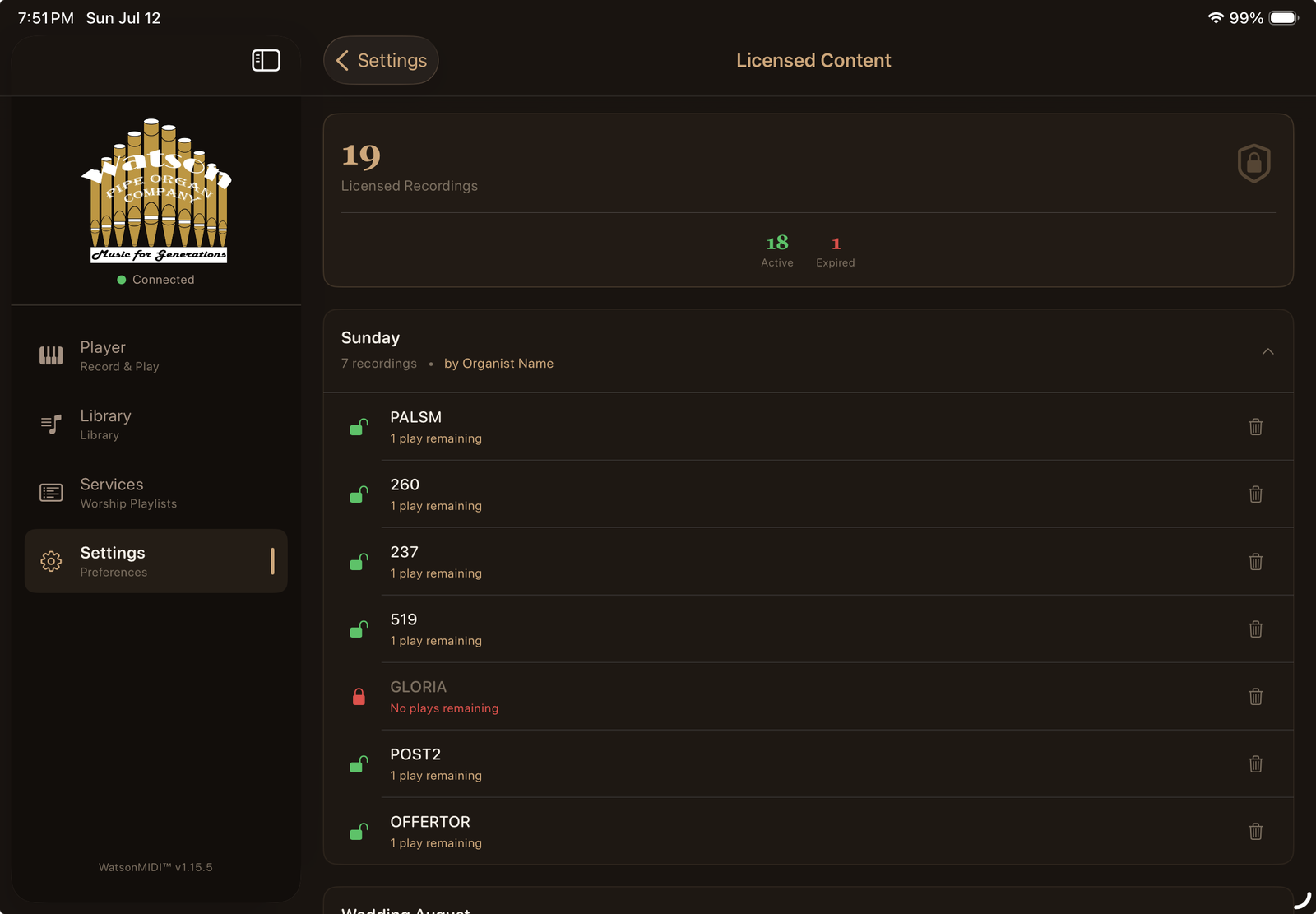
The Licensed Content page: every licensed recording, its creator, and its remaining terms.
Six Situations Where Control Matters
Every arrangement between a musician and a church is a relationship, and the right license protects the relationship as much as the recordings. These six stories – drawn from the situations organists actually face – show which license fits where, and why.
1. Two Sundays away – vacation coverage
Susan has played at her church for eleven years and is finally taking the lake trip her family has been promising. She records the prelude, hymns, offertory, and postlude for both Sundays, organizes them into two service playlists, and shares each with a Time-Limited license. When she taps the date, the caption reads “That’s about 5 weeks from today” – enough to cover both services with margin, and she can see at a glance she hasn’t accidentally granted a year. The A/V volunteer taps Play for each piece; the congregation sings; nobody hires a substitute. Two weeks after she’s back, the recordings quietly retire themselves. Why it matters: without the expiration, “temporary coverage” has a way of becoming a permanent library – and a reason not to schedule the organist.
2. The wedding – a performance, not a master tape
A couple books James for their wedding, but the rehearsal dinner conflicts with his Thursday teaching schedule. He records the processional, the hymn, and the recessional on the church’s organ, and shares them with a Limited Plays license – five plays: enough for the rehearsal, the ceremony, and a safety margin. The wedding coordinator plays them from the church iPad; the music is exactly what the couple chose; and after the weekend, the recordings are spent. James was paid for a performance. He didn’t accidentally hand the venue a free processional for every future wedding. Why it matters: one-off events are where recordings most often escape – a beautiful performance left on a venue iPad becomes the house default, unpaid, forever.
3. Three churches, one organist – licensing as income
David serves a rural circuit where three small congregations share him on a rotating schedule – which means two churches sing without an organist most Sundays. He records a library of forty hymns and liturgical pieces on each church’s own instrument and licenses each library with a Time-Limited one-year term, renewed annually for a modest fee. Each church builds its own service playlists from his recordings week by week – the license follows each recording into whatever playlist they build. Every renewal is a natural check-in: he refreshes the library, adds requests, adjusts the fee, and sends a fresh share whose new date replaces the old on import. His name is on every recording all year. Why it matters: the annual expiration converts goodwill into a durable arrangement – the license renews because it has to, and the conversation about value happens every year instead of never.
4. Margaret’s fifty years – a legacy on her terms
Margaret has played the same Wicks organ since 1976 and is retiring at 82. The church asks, gently, whether her music could stay. She decides what that means: the twelve hymns the congregation loves best, she shares with Keep Forever – a gift, her name embedded in each one for as long as they’re played. The rest of her library – decades of preludes, her Easter and Christmas settings – she licenses Time-Limited by the year, so the relationship continues and the church remembers the music has an author. Her complete archive stays on her own iPad, backed up, hers. Why it matters: a legacy should be given deliberately, not absorbed by default. The license lets Margaret be generous and still be the one who decided.
5. Moving on – turnover without a confrontation
Daniel accepts a position at a larger parish across the state. At his old church, his recordings are licensed through the end of the year – so there’s no awkward meeting about returning files, no wondering what’s still on whose iPad. The music simply plays through December and stops, exactly as agreed when he shared it. His successor starts with a clean room; the church knows precisely what it had and for how long; and if they want Daniel’s Christmas settings one more season, that’s a friendly phone call and a fresh share, not a dispute. Why it matters: most IP problems between musicians and churches aren’t malice – they’re ambiguity. A license replaces ambiguity with a date.
6. The helpful volunteer – protection without a scene
A well-meaning trustee at one of David’s churches decides to “back up the music to a flash drive, just in case” – and while he’s at it, AirDrop a copy to his brother-in-law’s congregation two towns over. Nothing dramatic happens. The backup runs and politely notes that licensed recordings stay with their license; the Share button explains the recordings are licensed from David and can’t be re-shared; the export list simply doesn’t offer them. The trustee shrugs and moves on. David never hears about it, never has to have a conversation, never becomes the bad guy. The software held the line so the relationship didn’t have to. Why it matters: this is the quiet scenario that happens constantly and that no written agreement can police. Now it doesn’t need policing.
A Word About Ownership
You retain full copyright to your performances, you control distribution, and you set the terms. One caution: if you’re employed by a church or organization, check your employment agreement – some give the employer rights to work created during work hours. When in doubt, discuss ownership before recording and confirm the understanding in writing, even if it’s just an email. Worth agreeing on ahead of time: who owns recordings made during services, whether the church may use them in your absence, what happens to them if you leave, and whether they may be shared with future musicians.
Your Protection Checklist
- Keep master copies of every recording on your own device – and back them up.
- Discuss ownership and usage terms with the church or client before recording.
- Put agreements in writing, even an informal email confirmation.
- Add your name under Creator Attribution on every share.
- Choose the least-permissive license that fits the relationship – you can always send more.
- Read the confirmation after sharing – it states exactly what you granted, including the date.
- Keep a simple log of what you’ve shared, with whom, and under what terms.
- Plan ahead for what happens to your library when you leave a position.
Your Musical Artistry Has Value
WatsonMIDI gives you the tools to share your work while keeping control over how it’s used.
Questions? We’re happy to help: support@watsonpipeorgan.com • (309) 335-1106
© 2026 Watson Pipe Organ Company. All rights reserved. WatsonMIDI is a trademark of Watson Pipe Organ Company.
Capture the Music. Share the Ministry.